WINDOWS PC • SETUP GUIDE
Traffic Rider MOD APK for PC
Learn how Android emulators work, configure keyboard controls, compare MOD claims and fix common launch problems.
A narrow gap between two cars can be hard to judge on a phone. Playing on a monitor gives you a larger view of the road. Add keyboard controls and riding can feel quite different from holding a small screen.
Traffic Rider MOD APK for PC uses a modified Android file inside an emulator. Some builds claim unlimited money or unlocked bikes. Below you will find the setup steps plus advice on controls and common errors. The aim is to help you understand what you are installing before your first ride. For bike features, Android versions and MOD download information, read our Traffic Rider MOD APK guide.
What Is Traffic Rider MOD APK for PC?
An APK is an Android app file. Windows cannot run it like a normal desktop program. An Android emulator provides the system needed to open it on a computer.
The original title comes from skgames. A MOD is a changed build made by someone else. Its features and safety depend on that exact file.
The official version is also listed for Windows through Google Play Games. That route installs the regular release. For a modified APK you need an emulator that supports manual APK installation.
How the Riding Works on PC
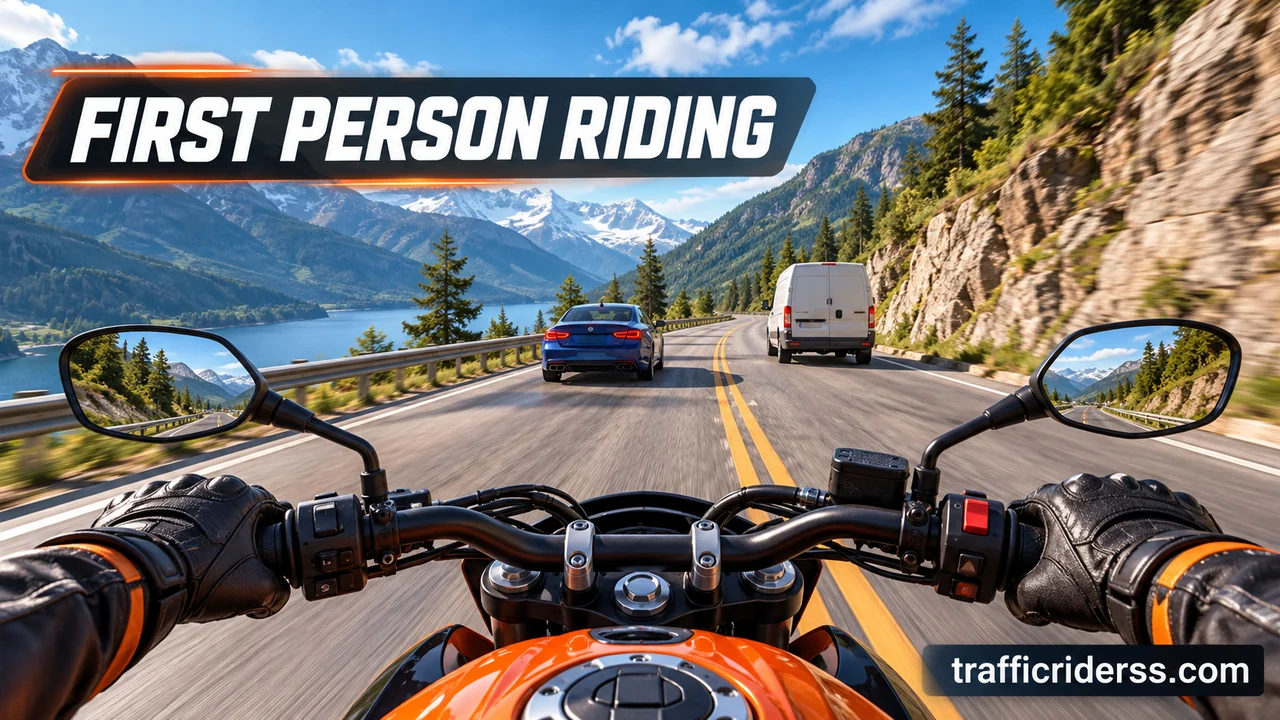
You ride from a first person view while passing cars on long roads. The official release lists 90+ career missions plus day and night scenes. Bike sounds were recorded from real motorcycles. Those parts come from the original release rather than a PC MOD.
Extra money may shorten the wait for upgrades. It does not automatically clear every mission or stop crashes. Keyboard handling also needs practice because a button press feels different from tilting a phone.
MOD Features and What They Mean
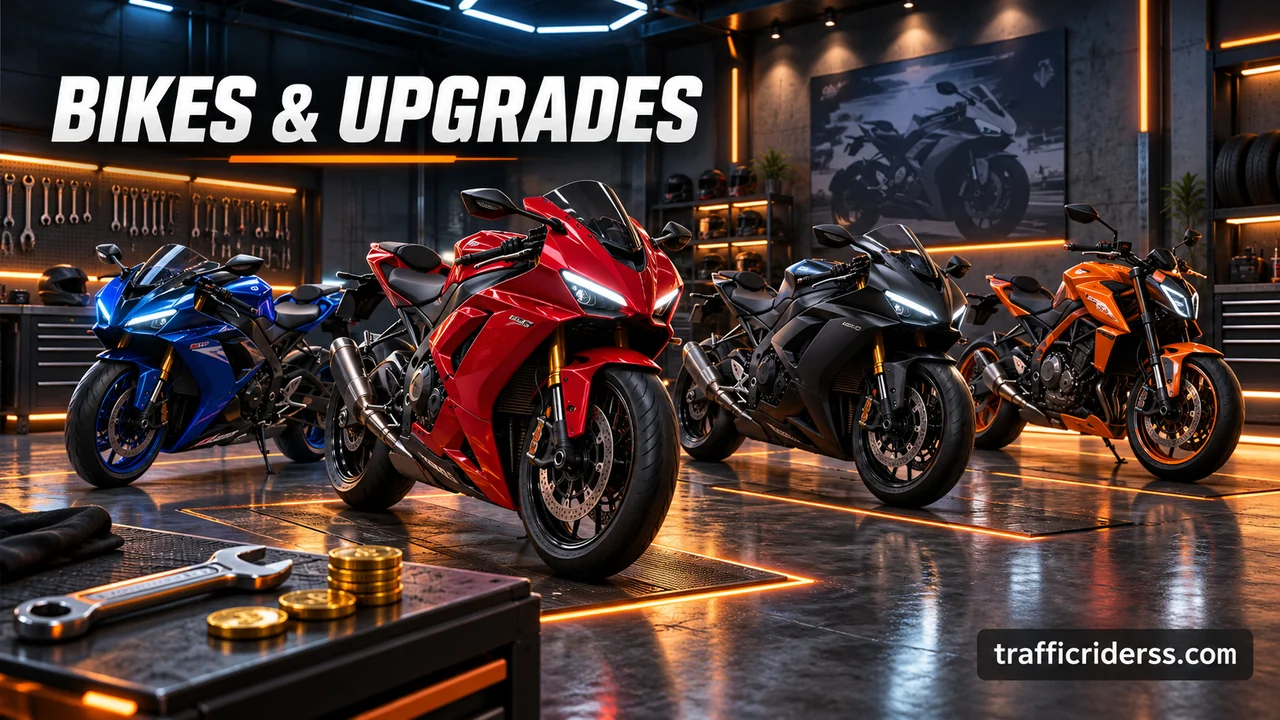
Unlimited Money
Many modified builds claim to give you a large cash balance or stop money from falling after purchases. That could let you buy upgrades without repeating rides to earn cash. The result depends on the file you install. You might receive extra coins in one build while another handles purchases differently. Check the garage after starting rather than trusting the download title alone.
All Bikes Unlocked
An unlocked garage may let you try bikes that normally need more progress or cash. The official listing currently describes 34 motorbikes. A modified build may use an older release with a different selection. Unlocking a bike also does not mean every upgrade is fitted. Look at the speed and handling details before riding so you know what has actually changed.
No Ads and Other Claims
Some files promise fewer ads or extra changes to the garage. These claims need checking in the actual app. Removing ads from an Android build does not remove ads shown by the emulator itself. A MOD also does not create a new Windows edition or fix weak hardware. Avoid assuming that every feature shown on a download page will work on your computer.
Why Play on a Computer?
A Larger View of the Road
A monitor can make cars and small movements easier to see. You may find it more comfortable to watch traffic during longer rides. The larger picture does not add extra lanes or improve the camera by itself. It simply shows the same riding view at a bigger size. A clear image and steady movement matter more than pushing the screen resolution too high.
Controls That Suit Your Hands
A keyboard gives you another way to steer and brake. You can place these actions on keys that feel comfortable instead of using phone tilt controls. The setup still needs a little practice. Quick key presses can make steering feel sharp at first. Try diffrent sensitivity levels during a short ride before deciding whether the keyboard suits you better than a phone.
PC Requirements Before You Download
Requirements depend on the emulator. BlueStacks 5 lists at least 4 GB RAM and 5 GB of free disk space. Current releases need Windows 10 or above. These minimums do not promise smooth riding.
For a more comfortable setup aim for:
- Windows 11 on a computer supported by your chosen emulator.
- An Intel or AMD processor with enough power for Android apps.
- At least 8 GB RAM for Windows and the emulator together.
- About 15 GB free space for the emulator and app data.
- An SSD for quicker loading.
- Updated graphics drivers.
- Hardware virtualization enabled when required.
Virtualization lets the processor handle the virtual Android system more efficiently. Check your computer maker’s guide before changing BIOS settings. The suggestions above are practical targets rather than official requirements for a particular MOD file.
How to Install Traffic Rider MOD APK on PC
Check the APK version and Android requirement before importing it. There is no single MOD file size or version that applies to every download. A file labelled EXE is a Windows program rather than an Android APK.
Install With BlueStacks
BlueStacks provides an Install APK tool for adding a file saved on your computer. Use the developer’s own website for the emulator download. Check the Android version of your emulator instance against the APK details before starting.
- Download BlueStacks and run its installer.
- Complete the setup and open the app player.
- Save the reviewed APK in a folder you can find.
- Click Install APK on the side toolbar.
- Select the file and choose Open.
- Wait for its icon to appear on the home screen.
- Open it and check whether the main menu loads.
You can also drag an APK onto the BlueStacks home screen. If installation fails you should check the error before deleting anything. A clean Android instance can help you test a file without replacing an existing copy and its saved progress. An instance is a separate virtual Android device.
Install With LDPlayer
LDPlayer is another Windows emulator with manual APK installation. It lets you import a saved file through its toolbar or by dragging it into the window. Choose an Android version that matches the file requirements. Installing both emulators at once is unnecessary if one already runs well on your computer.
- Download LDPlayer from its official website.
- Finish setup and launch the emulator.
- Find the APK in your download folder.
- Drag it into the emulator window or use Install APK.
- Wait for Android to complete the installation.
- Open the app from the home screen.
- Test a short ride before changing graphics settings.
Avoid replacing a working official copy without a backup. A modified file may conflict with it or fail to keep the same saved data.
Keyboard Controls for Steering and Braking
Open the emulator’s control editor while the riding screen is visible. Place keys over the correct touch buttons. For steering that uses phone movement you may need the emulator’s tilt control instead of a normal button mapping.
Try this layout:
- A or Left Arrow for steering left.
- D or Right Arrow for steering right.
- W or Up Arrow for the throttle.
- S or Down Arrow for braking.
- Mouse clicks for garage and menu choices.
These are suggested mappings rather than built in PC controls. Save a separate control profile so you can adjust it later. Test both steering directions and the brake before riding faster. If the bike moves too far with one press you should lower the tilt sensitivity and test again.
Settings for Smoother Riding
Start with a resolution of 1280 by 720. Try 30 FPS first on a weaker computer. Move to 60 FPS only if the picture stays smooth. These are starting settings rather than tested results for your hardware.
On a PC with 8 GB RAM you can try giving the emulator about 3 GB. Leave enough memory for Windows. Close unused browser tabs and other apps before riding.
Change one setting at a time. If several settings change together it becomes harder to tell which one helped. A MOD cannot promise better performance than the official release.
Common Problems and Simple Fixes
APK Will Not Install
First check whether the download finished. An incomplete file may fail before setup begins. Next compare the required Android version with your emulator. A MOD may also clash with an installed copy because their signing certificates do not match. Android checks these when accepting an app update. Try a fresh Android instance before removing your current app. Keep a backup because uninstalling can erase progress stored inside that instance.
Black Screen or Sudden Crashes
Restart the emulator and check for graphics driver updates. Try another supported graphics renderer in its settings if the screen remains blank. This option handles drawing the app’s picture. The choices vary with the emulator and Android version. Test the official release in a clean instance to help identify whether the problem is tied to the MOD. Avoid clearing app data unless you accept losing locally saved progress.
Lag or Steering Delay
Close other apps and lower the resolution. Check whether virtualization is enabled. Also check that Windows still has free memory while the emulator runs. A laptop may slow down during a long sesion if it gets hot. Keep its air vents clear. If steering alone feels wrong you should check the key mapping before changing every graphics option or downloading another file.
Check the File Before Opening It
A working emulator does not prove that an APK is safe. Check app permissions in Android settings and review access requests after launch. Access to contacts or messages would need a clear reason for a riding app.
Keep Windows Security active. A clean scan is useful but cannot prove complete safety. A matching name or icon is also not enough to confirm the file’s source. Avoid any package that asks you to turn off protection or install unrelated software before playing.
Updating Without Losing Your Progress
Before changing versions you should use the emulator’s backup feature where available. Keep a copy of your working controls too. An update from a different MOD source may fail to install over the current build.
Uninstalling first can remove local saves. Read the update details before taking that step. Test the new file in another Android instance when possible. Cloud progress is not guaranteed to carry between modified builds and the official release.
Frequently Asked Questions
Can I Play Without BlueStacks or LDPlayer?
The official release has a Windows option through Google Play Games for supported computers and regions. You can use that service without installing BlueStacks or LDPlayer. Google provides the Android gaming platform instead. It does not provide the modified APK described here. For manual MOD installation you need an emulator that accepts your file. Windows cannot run that APK by itself.
Does the MOD Work on Every Laptop?
No. A laptop needs enough memory and a processor supported by the emulator. The Android version inside the emulator also needs to suit the APK. Older machines may load the menu but struggle once traffic becomes busy. Check the emulator requirements before downloading. You can usually learn more from a short test ride than from a broad promise that every laptop is supported.
Can I Ride Without an Internet Connection?
The official Android listing includes offline play. You still need internet to download the emulator and install updates. Online scores and account features need a connection too. A modified build may behave differently or include extra checks. Once setup is complete you can test a ride with the connection off. Do not assume that every APK offers the same offline behavior.
Conclusion
A good PC setup starts with a compatible emulator and controls that feel predictable. Check the APK details before importing it. Then take a short ride to test steering and screen movement before raising the graphics settings.
If a modified build keeps causing errors you can use the official Windows route or the regular Android release inside an emulator. Choose the setup that lets you ride comfortably and keeps your progress easy to manage. For Apple phones and tablets, see our guide to Traffic Rider for iOS instead of trying to install an APK on an iPhone.

One Comment